Upload a Project
Step-by-step guide to uploading existing content into LangQuest using a CSV file, so you don't have to abondon useful data
Who This Guide Is For
If you've already been working on translation content outside of LangQuest — in spreadsheets, documents, or other tools — you can import it directly into LangQuest rather than re-entering everything by hand.
This guide walks you through the entire upload process from start to finish.
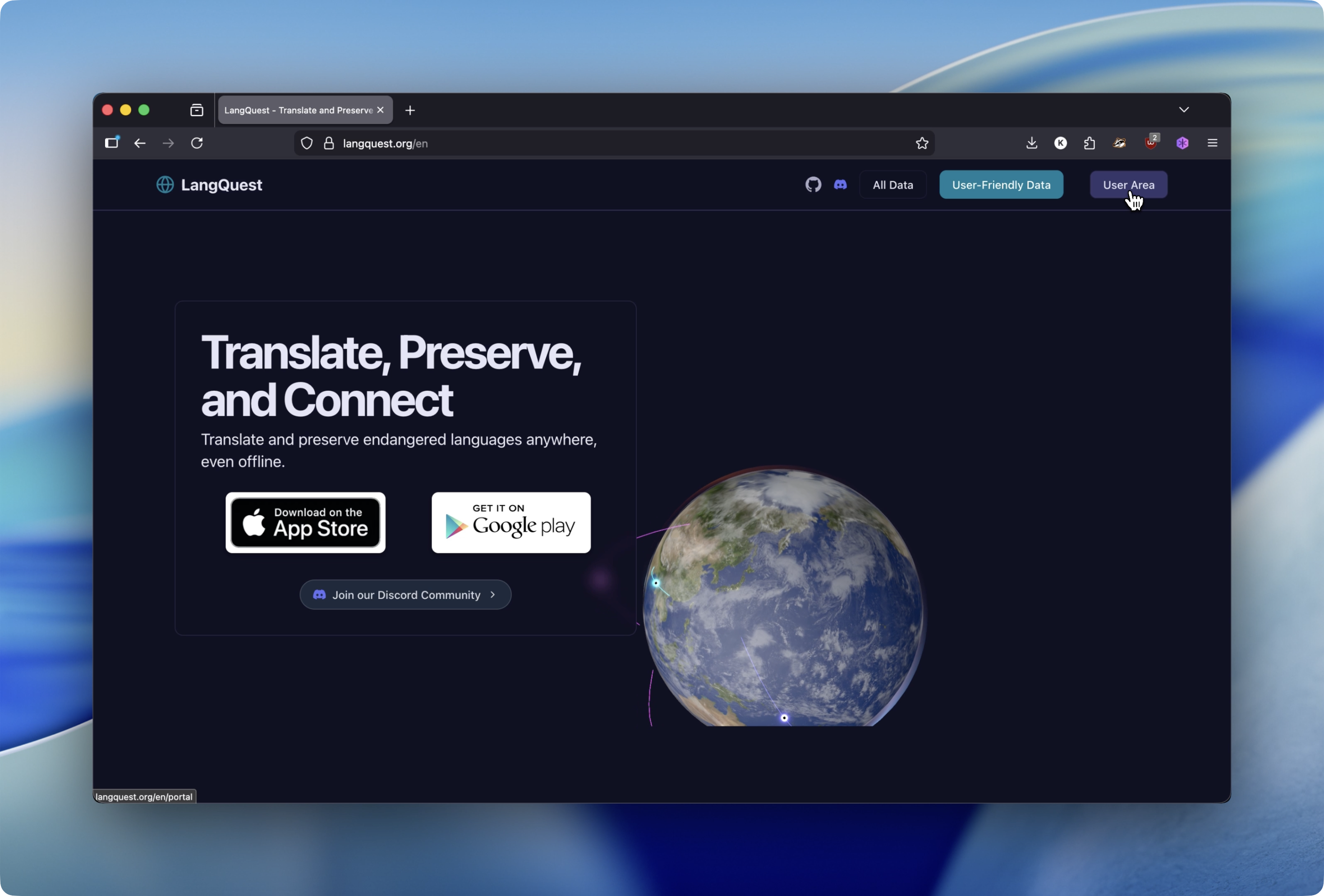
Step 1: Go to the LangQuest Website and Open the User Area
Navigate to langquest.org in your browser. In the top-right corner of the page, click the "User Area" button.
Step 2: Sign In to Your Account
You'll be taken to the Project Management Dashboard login screen. Enter the email address and password you used when you signed up for LangQuest, then click Login.
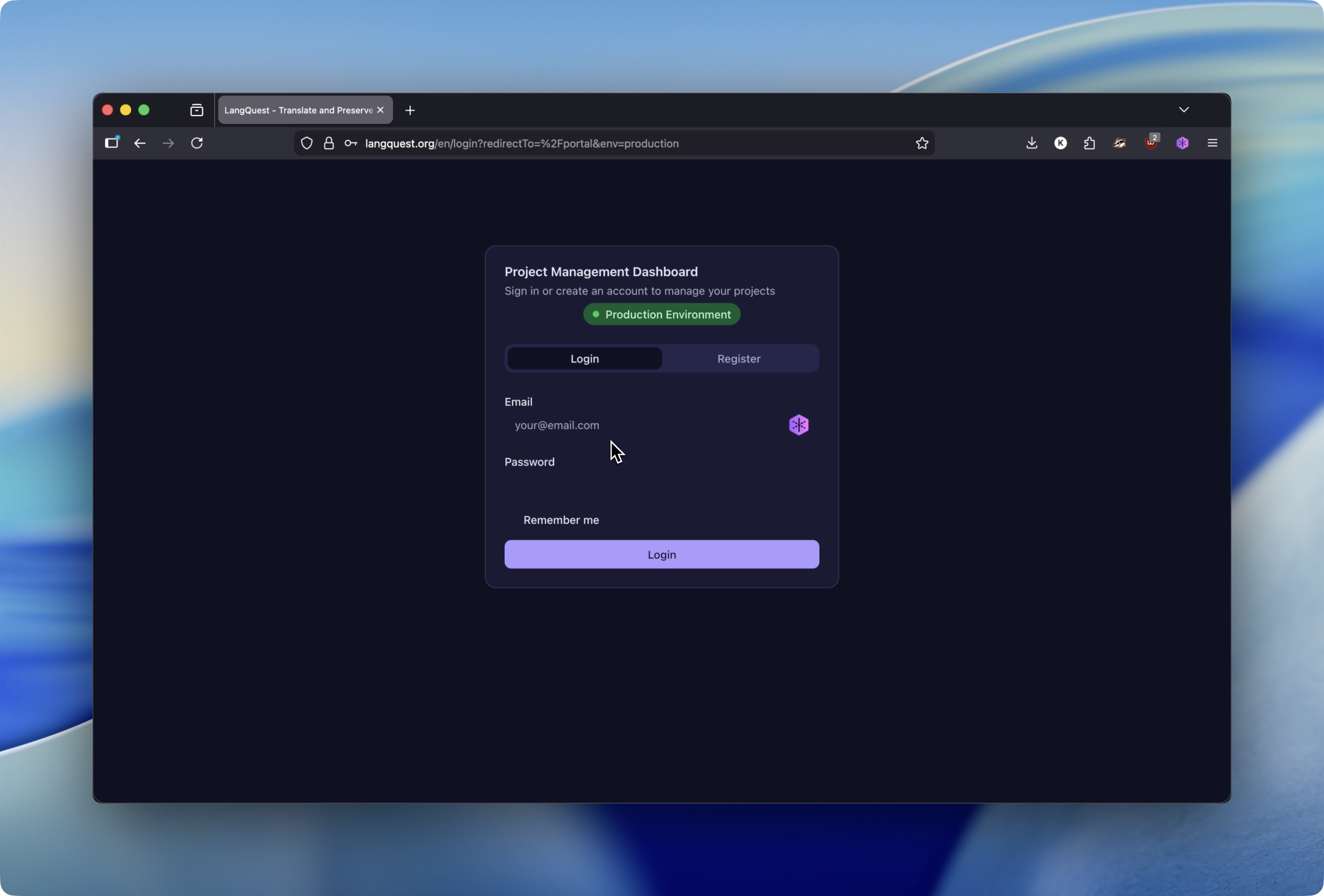
⚠️ Note: You must use the same email you registered with. If you don't have an account yet, click Register to create one first.
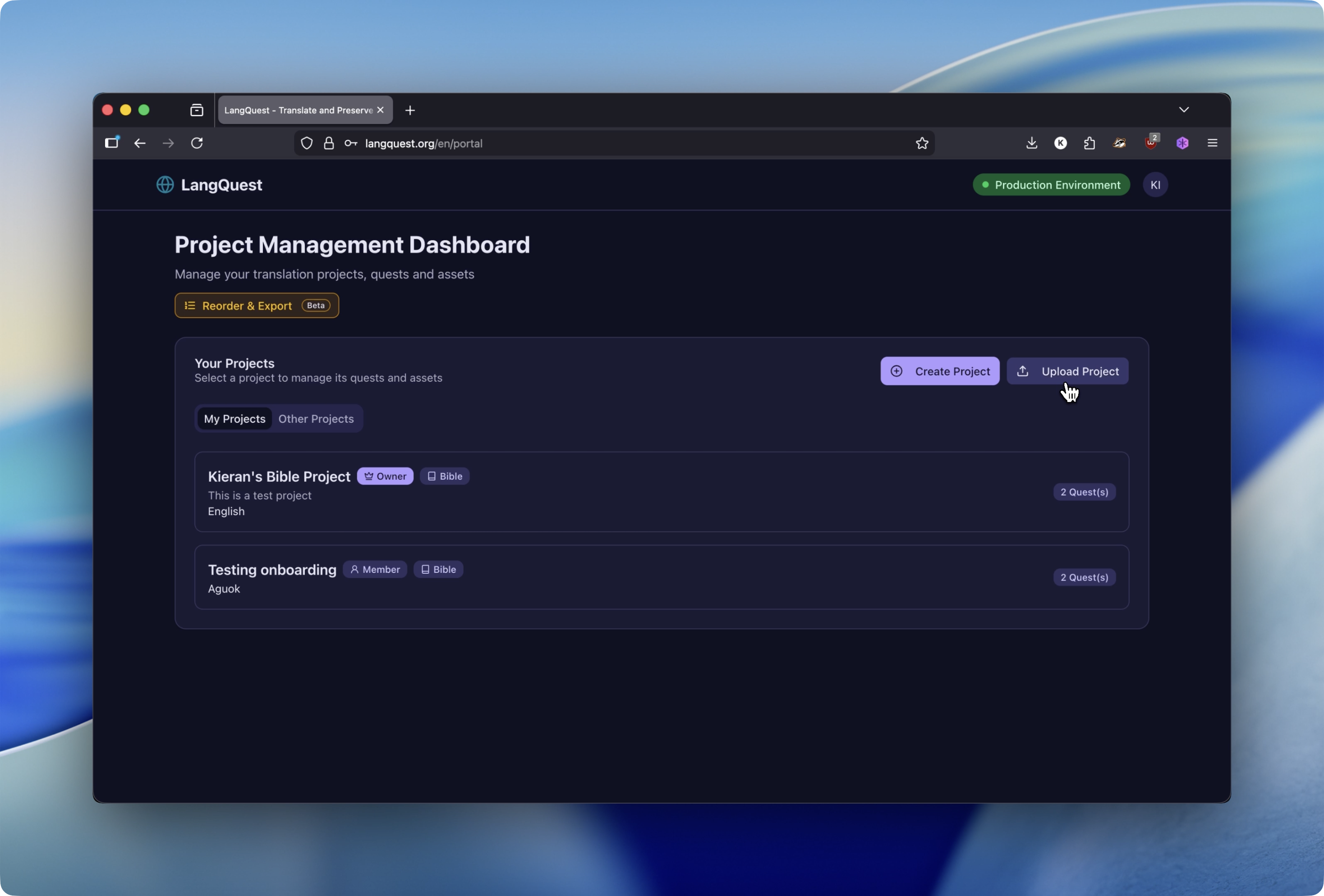
Step 3: Click "Upload Project" on Your Dashboard
Once logged in, you'll see your Project Management Dashboard listing all your existing LangQuest projects. In the top-right of the Your Projects section, click the "Upload Project" button.
Step 4: Review the ZIP File Format Requirements
A popup will appear explaining the required format for your upload. Before selecting a file, read through these requirements carefully so your upload is structured correctly.
To speed you along, download the template .csv file by clicking the button:
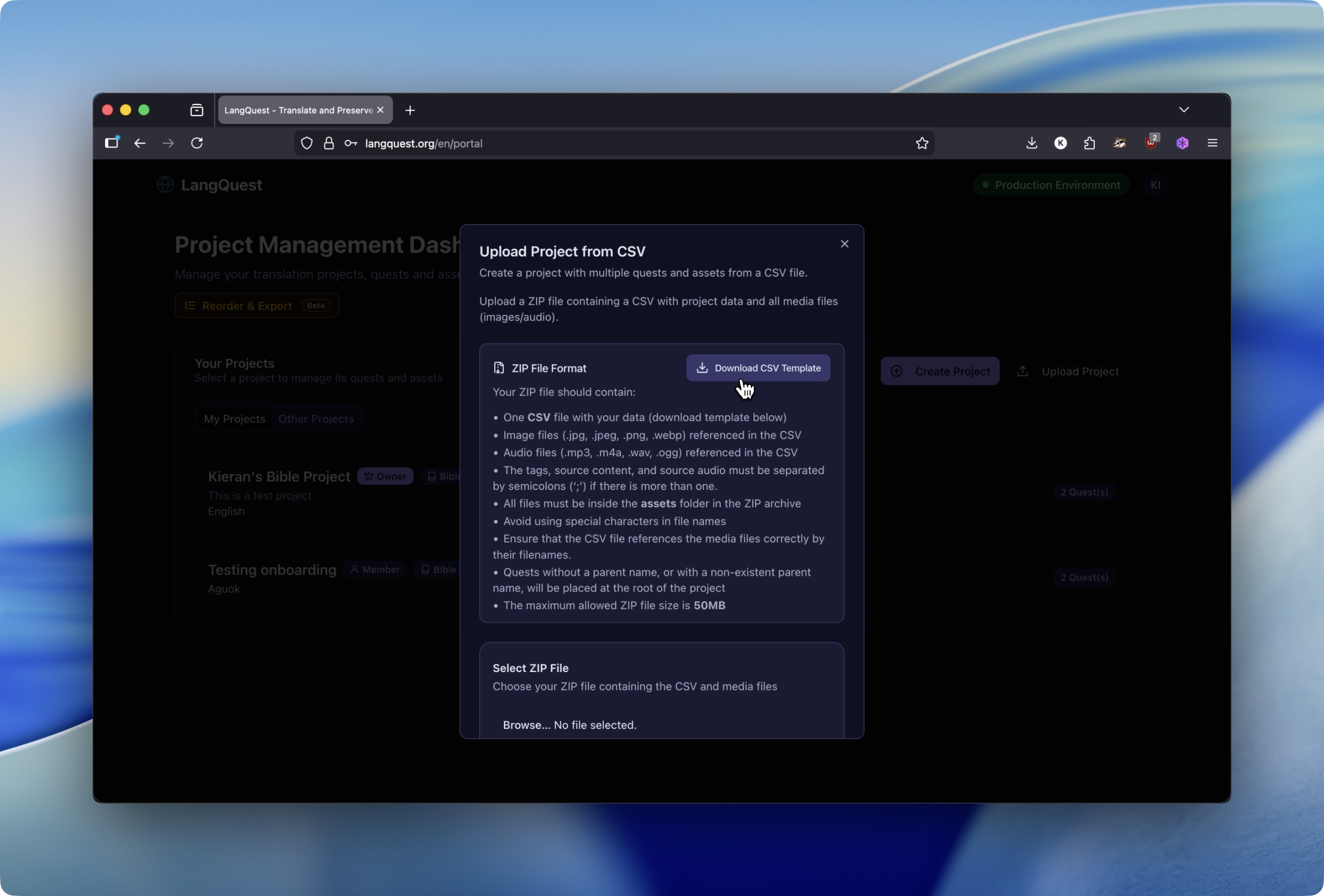
ZIP File Format
Your ZIP file must contain:
- One CSV file with your project data — Download CSV Template to get the correct column structure, or click the "Download CSV Template" button inside the popup
- Image files (
.jpg,.jpeg,.png,.webp) referenced in the CSV - Audio files (
.mp3,.m4a,.wav,.ogg) referenced in the CSV
Formatting Rules
- Tags, source content, and source audio must be separated by semicolons (
;) if there is more than one - All files (CSV and media) must be placed inside an
assetsfolder within the ZIP archive - Avoid using special characters in file names
- Ensure the CSV references media files correctly by their filenames
- Quests without a parent name, or with a non-existent parent name, will be placed at the root of the project
- The maximum allowed ZIP file size is 50MB
Step 5: Select Your ZIP File and Upload
Scroll down in the popup to the "Select ZIP File" section. Click "Browse..." to open your computer's file picker and choose your prepared ZIP file.
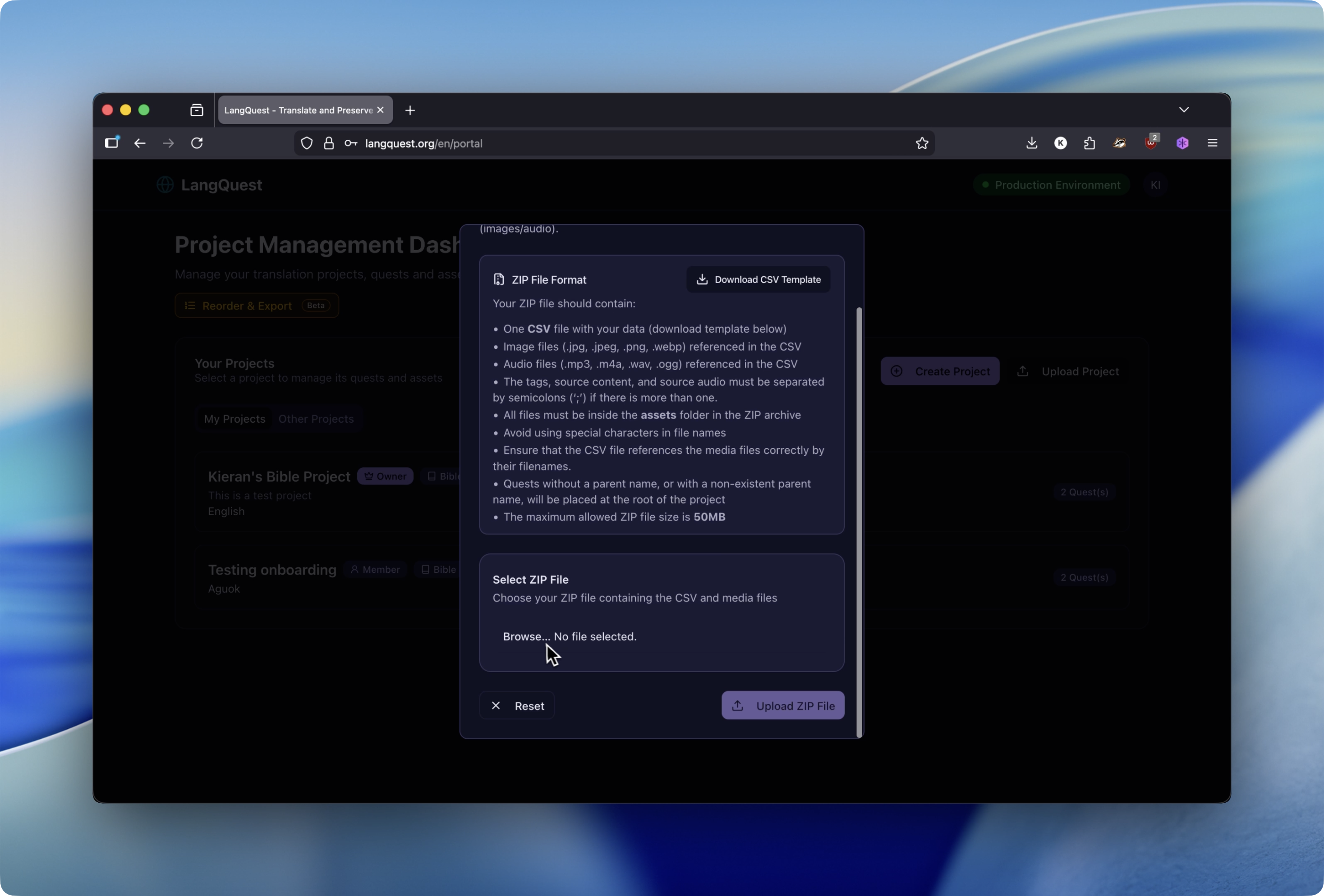
Once you've selected your file, click "Upload ZIP File" to begin the import. LangQuest will process your CSV and media files and create the project automatically.
Summary
- Go to langquest.org and click User Area
- Log in with your LangQuest email and password
- Click "Upload Project" on your dashboard
- Review the format requirements and download the CSV template if needed
- Click "Browse...", select your ZIP file, then click "Upload ZIP File"
Your project will appear in your dashboard once the upload is complete, ready to work on in the LangQuest app.
Next Steps
- LangQuest Basics - Learn how to record and work with content inside the app
- Project Membership - Invite team members to collaborate on your newly uploaded project